大地图

大地图

需求

大地图开发日志

参考

参考原神官方大地图原神地图

目标

可以快速完成一个游戏的大地图搭建,并且完成基础功能。

开发环境

Node

Node.js — 下载 Node.js®

1
2
3
4
5
6
7
8
9
10
# 安装 fnm (快速 Node 管理器)
winget install Schniz.fnm
# 配置 fnm 环境
fnm env --use-on-cd | Out-String | Invoke-Expression
# 下载并安装 Node.js
fnm use --install-if-missing 22
# 验证环境中是否存在正确的 Node.js 版本
node -v # 应该打印 `v22.12.0`
# 验证环境中是否存在正确的 npm 版本
npm -v # 应该打印 `10.9.0`

Vue3

Quick Start | Vue.js

1
npm create vue@latest

Leaflet

Download - Leaflet - a JavaScript library for interactive maps

切瓦片工具

  • ps
  • tilemap
  • tiler
  • gdal2tiles py 自动切瓦片

开发流程

  • 开发环境安装
    • node
    • Vue3
  • 准备瓦片 tiles
    • gdal2tiles
  • 初始化项目
    • 创建 vue3
    • 删除多余文件
    • 安装 less
    • 安装 leaflet
  • 初始化 leaflet
    • 载入地图 (坐标系调整)
    • 设置 zoom 范围
    • 设置拖拽边界
    • 批量添加地名
    • 批量添加标注点
    • 封装地图相关接口
  • 初始化筛选栏 UI
    • 完成静态筛选栏
  • axios 与 mockjs
    • 安装 axios
      • 请求基类
    • 安装 mockjs
      • npm i mockjs
      • mock index
      • mock 数据
      • main. ts 载入
  • 组件联动通信
    • 安装 pinia
      • npm i pinia
      • store home. ts
      • main. ts 载入
    • 多组件数据交换
  • 地名动态展示
    • 全局变量
  • 标点动态展示
  • 缩放 UI-zoomslider 插件
  • 标点弹窗展示
  • 多个地图管理

更新

  • 搜索功能
  • 离线地图?

docker 入门 docker-compose

一丶 常用链接

Compose 安装

Compose 安装
Linux
Linux 上我们可以从 Github 上下载它的二进制包来使用,最新发行的版本地址:https://github.com/docker/compose/releases。

运行以下命令以下载 Docker Compose 的当前稳定版本:

$ sudo curl -L “https://github.com/docker/compose/releases/download/1.24.1/docker-compose-$(uname -s)-$(uname -m)” -o /usr/local/bin/docker-compose
要安装其他版本的 Compose,请替换 1.24.1。

将可执行权限应用于二进制文件:

$ sudo chmod +x /usr/local/bin/docker-compose
创建软链:

$ sudo ln -s /usr/local/bin/docker-compose /usr/bin/docker-compose
测试是否安装成功:

$ docker-compose –version
cker-compose version 1.24.1, build 4667896b
注意没有tab全是空格

1
2
3
4
5
6
7
8
9
10
11
12
13
14
15
16
version: '3'
services:
mysql2:
image: mysql
environment:
- MYSQL_ROOT_PASSWORD=123456
ports:
- 28002:3306

mysql3:
image: mysql
environment:
- MYSQL_ROOT_PASSWORD=123456
ports:
- 28003:3306


docker-compose up -d
docker ps

docker hub

登录

1
2
3
4
5
6
7
8
9
10
11
[root@hecs-409746 home]# docker login
Login with your Docker ID to push and pull images from Docker Hub. If you don't have a Docker ID, head over to https://hub.docker.com to create one.
Username: loyalvi
Password:
WARNING! Your password will be stored unencrypted in /root/.docker/config.json.
Configure a credential helper to remove this warning. See
https://docs.docker.com/engine/reference/commandline/login/#credentials-store

Login Succeeded
[root@hecs-409746 home]#

1
2
3
4
5
6
7
8
9
10
11
12
13
14
15
16
17
18
19
20
21
22
23
24
25
26
27
28
29
30
31
32
33
[root@hecs-409746 home]# docker images
REPOSITORY TAG IMAGE ID CREATED SIZE
mysql latest 5c62e459e087 11 days ago 556MB
hello-world latest d1165f221234 4 months ago 13.3kB
[root@hecs-409746 home]# docker ps
CONTAINER ID IMAGE COMMAND CREATED STATUS PORTS NAMES
5c9023d1080d mysql "docker-entrypoint.s…" 7 minutes ago Up 7 minutes 33060/tcp, 0.0.0.0:28003->3306/tcp, :::28003->3306/tcp home_mysql3_1
48d935b2c0c2 mysql "docker-entrypoint.s…" 7 minutes ago Up 7 minutes 33060/tcp, 0.0.0.0:28002->3306/tcp, :::28002->3306/tcp home_mysql2_1
6ab8621a2502 mysql "docker-entrypoint.s…" About an hour ago Up About an hour 33060/tcp, 0.0.0.0:28001->3306/tcp, :::28001->3306/tcp mysql1
[root@hecs-409746 home]# docker commit 6ab8621a2502 loyalvi/mysql:1.0
sha256:88e5ded74bd47974385247d59d51f75daeb284360f049c4f9e69fb15af9d6026
[root@hecs-409746 home]# docker images
REPOSITORY TAG IMAGE ID CREATED SIZE
loyalvi/mysql 1.0 88e5ded74bd4 5 seconds ago 556MB
mysql latest 5c62e459e087 11 days ago 556MB
hello-world latest d1165f221234 4 months ago 13.3kB
[root@hecs-409746 home]# docker push loyalvi/mysql:1.0
The push refers to repository [docker.io/loyalvi/mysql]
9fa71ac3fdc5: Pushed
027a41439ba4: Mounted from library/mysql
cd0c4980990f: Mounted from library/mysql
eeabd280c12e: Mounted from library/mysql
1a4de2199d77: Mounted from library/mysql
ae8fcba6091c: Mounted from library/mysql
d7cde20f3f68: Mounted from library/mysql
b8d0aeaeeee8: Mounted from library/mysql
893f6aea2ce2: Mounted from library/mysql
1952fb2b0eb4: Mounted from library/mysql
50854886015e: Mounted from library/mysql
71a14cc55692: Mounted from library/mysql
764055ebc9a7: Mounted from library/mysql
1.0: digest: sha256:92c274ddcde838b00ecc31636fc8da506609222cb7f47247b1b54ba9b6f38e4d size: 3035

1
docker pull loyalvi/mysql

docker 入门 CentOS7的安转

一丶 常用链接


菜鸟 安装
官网

删除之前的docker

sudo yum remove docker

安装依赖

1
2
3
$ sudo yum install -y yum-utils \
device-mapper-persistent-data \
lvm2

切换源

使用官方源地址(比较慢)
$ sudo yum-config-manager
–add-repo
https://download.docker.com/linux/centos/docker-ce.repo

可以选择国内的一些源地址:

阿里云
$ sudo yum-config-manager
–add-repo
http://mirrors.aliyun.com/docker-ce/linux/centos/docker-ce.repo
清华大学源
$ sudo yum-config-manager
–add-repo
https://mirrors.tuna.tsinghua.edu.cn/docker-ce/linux/centos/docker-ce.repo

安装

$ sudo yum install docker-ce docker-ce-cli containerd.io

过程中要选2次 是 (y)

$ sudo systemctl start docker
$ sudo systemctl status docker
$ sudo docker run hello-world

$ docker ps
查看所有镜像 (历史)
$ docker ps -a

换源

Ubuntu16.04+、Debian8+、CentOS7
对于使用 systemd 的系统,请在 /etc/docker/daemon.json 中写入如下内容(如果文件不存在请新建该文件):

{“registry-mirrors”:[“https://registry.docker-cn.com/"]}
之后重新启动服务:

$ sudo systemctl daemon-reload
$ sudo systemctl restart docker

删除

docker rm 名称或者ID

$ docker run –name some-mysql -e MYSQL_ROOT_PASSWORD=my-secret-pw -d mysql:tag

$ docker run –name mysql1 -e MYSQL_ROOT_PASSWORD=123456 -d mysql

$ docker run –name mysql1 -e MYSQL_ROOT_PASSWORD=123456 -p 28001:3306 -d mysql

linux常用命令

一丶硬件型

  1. 查看操作系统版本
1
2
3
4
lsb_release -a

uname -a

  1. 查看磁盘使用情况
1
2
3
df
//单位G
df -TH
  1. “任务管理器”
1
top

一丶

1
2
3
4
5
6
7
8
9
10
11
12
13
14
15
16
17
18
19
20
21
22
23
[root@hecs-409746 /]# cd home/
[root@hecs-409746 home]# mkdir test
[root@hecs-409746 home]# cd test/
[root@hecs-409746 test]# ls
[root@hecs-409746 test]# touch test.txt
[root@hecs-409746 test]# ls
test.txt
[root@hecs-409746 test]# vi test.txt
[root@hecs-409746 test]# cat test.txt
hello world linux
[root@hecs-409746 test]# echo 'hello' > test.txt
[root@hecs-409746 test]# cat test.txt
hello
[root@hecs-409746 test]# rm test.txt
rm: remove regular file 'test.txt'? y
[root@hecs-409746 test]# ls
[root@hecs-409746 test]# mkdir testdir
[root@hecs-409746 test]# ls
testdir
[root@hecs-409746 test]# rm -r testdir/
rm: remove directory 'testdir/'? y
[root@hecs-409746 test]# rm -rf

下载

wget 链接

tar zxvf 文件

tar zcvf 文件压缩名 文件

//查看进程
ps -ef | grep 正则
kill -9 PID

//查看服务
service sshd status

systemctl status firewalld.service

git初探(四)-配置ssh密钥(mac)

git_4

mac下创建和管理ssh密钥。

1.创建ssh密钥

gitbash上执行

1
ssh-keygen -t rsa -b 4096 -C "2869775223@qq.com"

执行后三个选项

  • 文件路径及名称
  • 密码 之后使用该密钥时使用的密码,可以为空
  • 确认密码
    执行之后会在默认地址/c/Users/<user>/.ssh/id_rsa生成对应的id_rsaid_rsa.pub文件.
    setting-ssh添加密钥(id_rsa.pub文件内容)

Read More

python入门hello world

Helloworld

前期准备

  1. 安装 python
    前往python官网下载安装
  2. 安装 pycharm
    前往jetbrains官网下载安装pycharm

Hello World (一)

win 直接搜索python打开python客户端(python shell),键入print (“Hello, world!”)回车就可以执行第一条python代码。

Hello World (二)

pycharm里新建文件夹,在文件夹里新建hello_world.py文件,键入print (“Hello, world!”),右键文件点击Run'helloworld'

虚拟环境安装-windows

前期准备

  1. 安装 virtualenvwrapper-win
1
2
pip install virtualenvwrapper-win`
pip install virtualenv
  1. 指定python文件位置,新建指定python版本的虚拟环境
1
mkvirtualenv -p C:\Users\HFY\AppData\Local\Programs\Python\Python37-32\python.exe python spider

使用deactivate来退出虚拟环境

1
2
3
C:\Users\HFY\Envs\spider

workon

git初探(三)-配置ssh密钥(windows)

git_3

windows下创建和管理ssh密钥。

1.创建ssh密钥

gitbash上执行

1
ssh-keygen -t rsa -b 4096 -C "2869775223@qq.com"

执行后三个选项

  • 文件路径及名称
  • 密码 之后使用该密钥时使用的密码,可以为空
  • 确认密码
    执行之后会在默认地址/c/Users/<user>/.ssh/id_rsa生成对应的id_rsaid_rsa.pub文件.
    setting-ssh添加密钥(id_rsa.pub文件内容)

Read More

git初探(一)-git基本原理

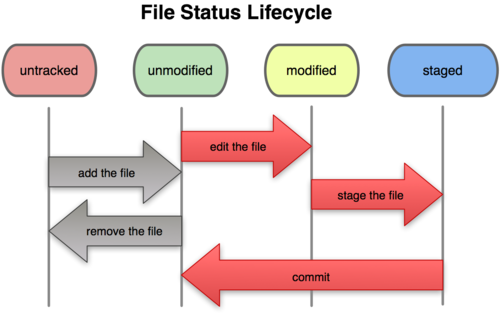
1.仓库

仓库分为工作区 暂存区 提交区。

  • 文件夹即是工作区。
  • 使用 git add 命令添加文件到暂存区(stage)。
  • 使用 git commit 添加文件到版本库?(commit .git文件夹中的快照信息)。
  • git status 可以查看被commit的文件(工作区和暂存区的状态)
  • git status -s 文件状态的简写(M - 修改, A - 添加, D - 删除, R - 重命名,?? - 未追踪)。

1.png
1.png

  • modified: 修改
  • tracked: 跟踪

git_2

git_2

推送已有项目代码到远程仓库。

1.初始化仓库

1
2
3
4
5
6
7
//初始化
git init
//所有文件(.)添加到暂存区
git add .
//添加到版本库,形成快照
git commit -m "init project"
git status

Read More